Map Questions, Variables and Topics
- Hayley Mills
- Becky Oldroyd
Once a questionnaire and dataset has been documented, it then goes through a process called mapping or linking. This connects the documented questions to dataset variables, and both to topics.
- A variable can be mapped to either a source question or a source variable depending on whether the variable is normal or derived
- A question can be mapped to multiple variables
- It is possible, but not recommended, that a variable can be mapped to multiple questions (as these should ideally be mapped to source variables)
- A derived variable is expected to have at least two source variables mapped to it e.g. derived variable BMI, will have the source variables of height and weight
- Derived variables and their source variables do not have to have the same topic, although this is preferable that they have the same topic, it may not be possible
- Variables and questions which are mapped together must have the same topic (these are inherited, as described below)
- A question grid can be mapped to variables as a whole item or to individual grid cells
- A question grid can only be mapped as a whole to one topic
- Ideally all variables should be either mapped to a question or variable
- Ideally all items (question item, variable or question grid) should be mapped to a topic
Archivist (previously Mapper) provides a graphical user interface to simplify the task of connecting questions, variables and topics, automatically assigning mappings where possible and maintaining constraints.
The steps below can be followed to map questions, variables and topics manually. If you want to do this via text files please refer to Using Txt Files
Note: Archivist users must have the correct permissions to apply links and mappings.
1) Create the dataset XML
1) Run Sledgehammer and DDI-Flavour on the dataset. Note: The prefix used when running Sledgehammer must match the instrument prefix.
2) The CLOSER team will upload this to Archivist and link it to the questionnaire.
2) Link variables/questions to their source
You can either a) link variables to their source from the dataset or b) link questions to variables from the questionnaire.
a) Link variables to questions/variables
Datasets > search for the dataset prefix or name > under Actions select VIEW
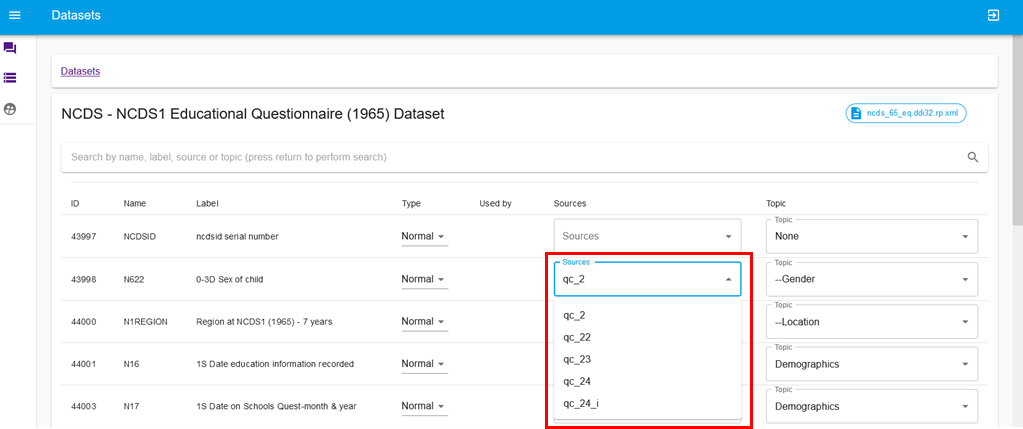
For a normal variable enter the question name into Sources. This will auto-populate as you type, so the question can be selected from the drop-down list. More than one question can be mapped to a variable. Note: if there is already a topic applied to the variable, only those questions mapped to that topic, or no topic will appear in the dropdown list.
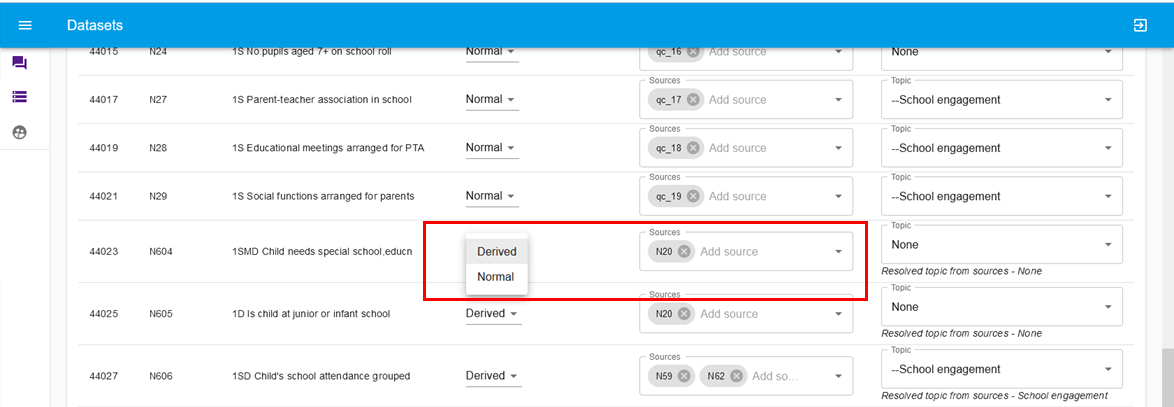
For a derived variable select Derived from the drop-down list under Type. Enter the variable name into Sources. This will auto-populate as you type, so the variable can be selected from the drop-down list. More than one variable can be mapped to the derived variable.
b) Link questions to variables
Instruments > search for the questionnaire prefix > under Actions select MAP.
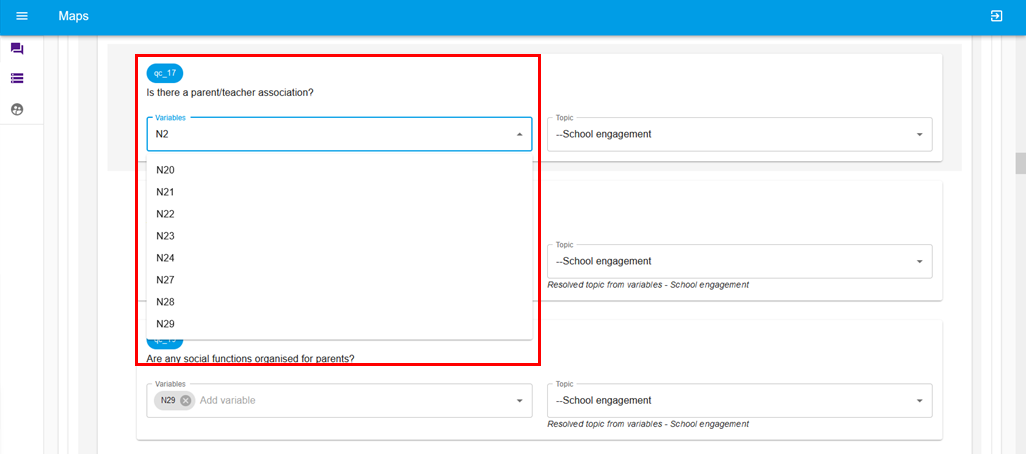
For single questions For each question enter the variable name into the Variables space. This will auto-populate as you type, so the variable can be selected from the drop-down list. More than one variable can be mapped to a question.
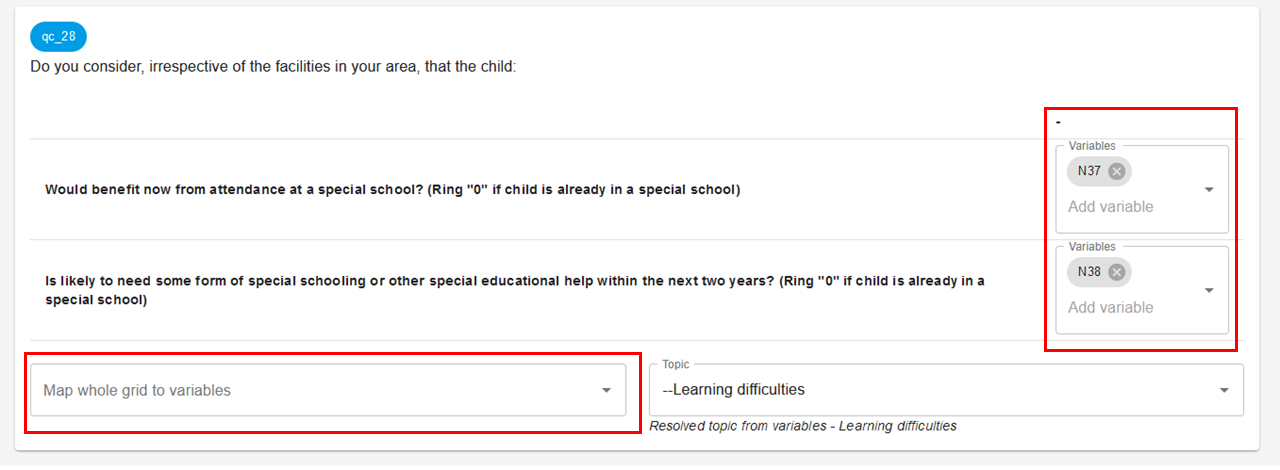
For question grids you can either add a variable for each grid cell by entering the variable name into the Add variable space, or enter the variables into the Map whole grid to variables space at the bottom to map to the group of questions.
3) Map to topics
You can either a) map variables to the topics from the dataset or b) map the questions to the topics from the questionnaire.
a) Map variables to topics
To map the variables to topics navigate to Datasets > search for the dataset prefix or name > under Actions select VIEW
For each variable select the correct topic from the drop down list. This will auto-populate as you type, so the topic can be selected from the drop-down list. Be careful to distinguish between the COVID and non-COVID topics.
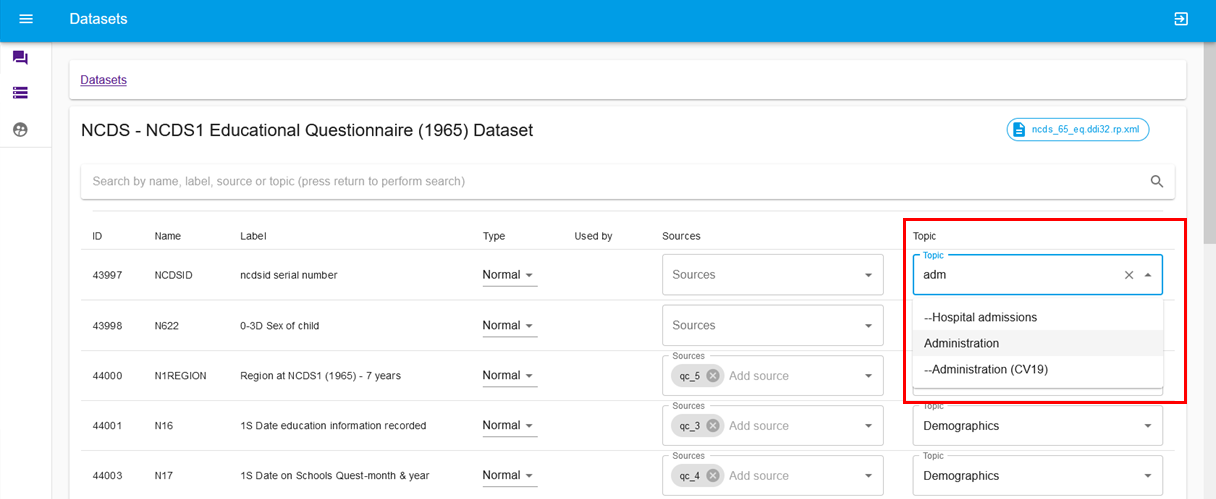
Note: If the variable is linked to a question it will automatically inherit that question to the topic. Linked question and variables must have the same topic. Variables which are linked to different cells in a question grid also must all have the same topic. If this is not the case, Archivist will show a conflict error in red. For more information please see Applying Topics.

Note: If the derived variable is linked to a variable, the source variable will have a suggested topic automatically inherited (this can be overwritten). If the derived variable already has a topic applied then these will not be overwritten.
b) Map topics to questions
Instruments > search for the questionnaire prefix > under Actions select MAP.
You can map questions to a topic and/or map the all questions which have the sequence as a parent, to a topic
For single questions
Select the correct topic from the drop down list. This will auto-populate as you type, so the topic can be selected from the drop-down list.
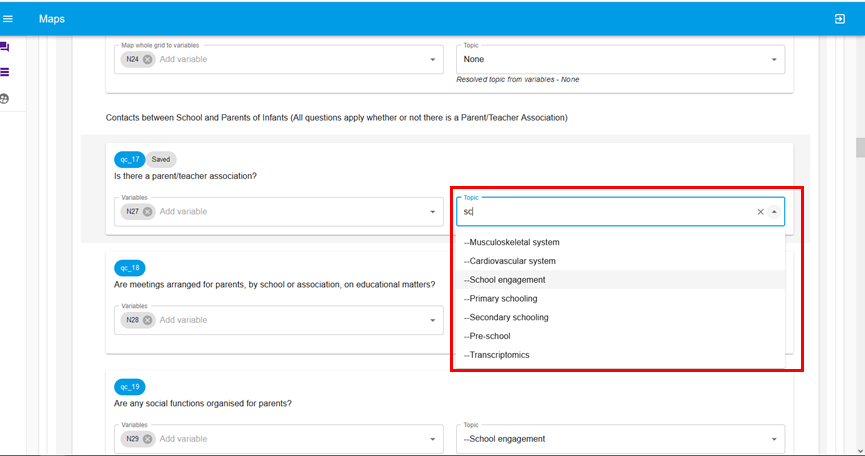
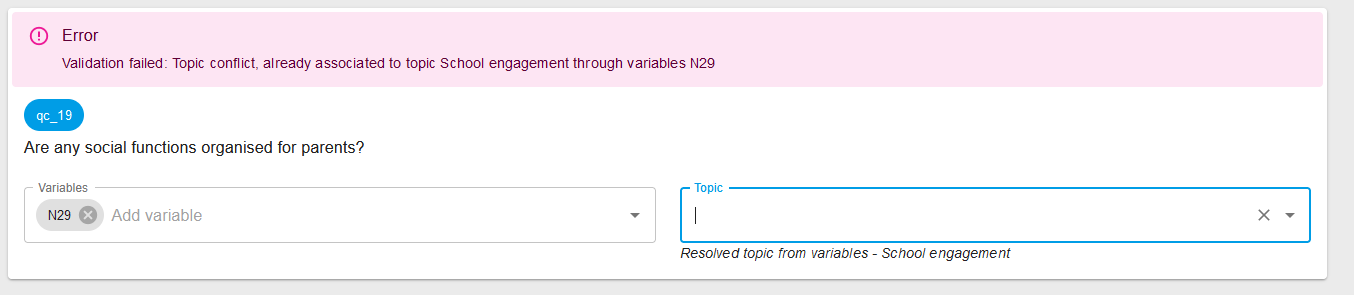
Variables and questions which are linked, must have the same topic mapped to both. If this is not the case, Archivist will show a conflict error in red. For more information please see Applying Topics.
For question grids Only one topic can be applied to a grid as a whole, which is why there is only one drop down box for the question grid topic,
For sequences Whole sections of the questionnaire can be linked to a topic by adding a topic to a sequence. Note: This will only map questions were the direct parent is the sequence, if the question has a condition as their parent, this will not be mapped.
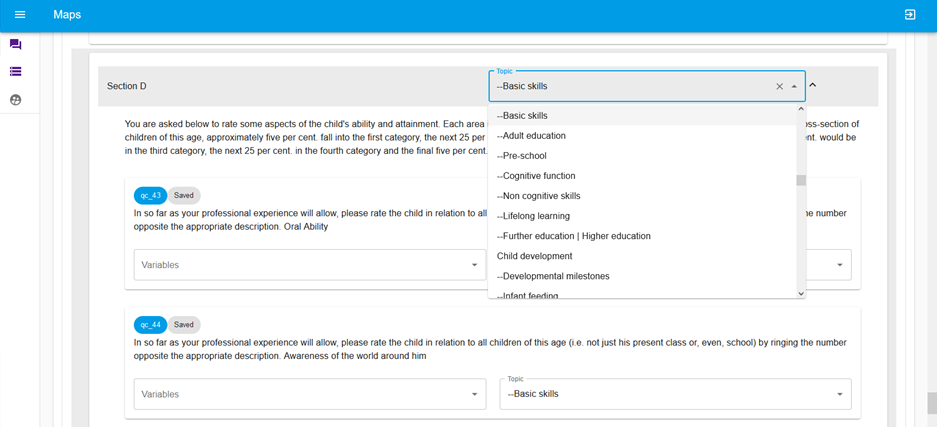
If there are questions which are already mapped to topics (either added or inherited) which are the first child of the sequence and they are all the same, then the sequence topic is available to update. Where the topics are not the same the option will not display. If you change the sequence topic it will change those first child questions to that, unless there is a conflict with the variable. Note, if you apply a topic to the sequence, it will display as 'saving' then 'saved' but yuu will need to refresh the page to see the topic display.
4) Check the mappings in the instrument view
Instruments > search and select View. This will gives the questionnaire view with the variable names listed against them. You can click on the variable name to see the variable label.