M30f - Updating and checking your course, ready for use this academic year
- Aurelie Soulier (Deactivated)
- Eliot Hoving
- Tom Walters
Checklist
Ensure you undertake these actions in the new rolled-over page for the next academic year.
Caution
Only make these changes in your new 2024/25 course page.
If you have any concerns, please contact the Digital Education team before you change any content:.
 Date manager
Using the Date Manager, review and update Moodle activity dates, such as Moodle assignments, Turnitin assignments, Databases, Forums, Lessons, Quizzes and Workshops.
 Course format
Double check your course format. The flexible course format is being phased out from July 19th 2024 so if you use this format, you will need to change your course to another format. For more information please see the Digital Education blog.
 Course content
Review and update your course page title and any activity names that include dates or years, as needed.
If you have hyperlinks to other rolled-over Moodle courses in your course, or know of links to your Moodle course page from other places, you will need to update these.
 Reading List / Library Resources block
As per the guidance on M10 - Reading List, review and mend links to reading list items, so they point to the current reading list
 Common Timetable block
As per the guidance on M05d - Common Timetable block, review and update the details for the Common Timetable block.
- On the Common Timetable block, click the cog icon to edit the settings.
- Click Configure Common Timetable block.
- Once in the next screen, click the Module Timetable section to expand it if needed, then type the module code into the box provided, ensuring that the Display box is ticked.
- Click Save changes.
 LectureCast Activity links
All LectureCast links in your Moodle course are copied over from the previous year. LectureCast activity links from last year need to be hidden as soon as possible, before being linked to the new year section in LectureCast. You can easily hide the links all at once (or delete them if you are not planning on using last year's recordings) using the Bulk Editing feature.
Please make sure you link your rolled-over course to the relevant LectureCast section for next year by following the instructions on the Preparing for the new Academic Year - Lecturecast roll-over page.
On 1st August 2023, the new sections for the 2023/24 academic year will be available in LectureCast, you can then start linking your rolled-over course to the relevant LectureCast section for next year.
 Zoom meetings
Zoom meeting links are not copied over from the previous year. Add new Zoom meeting links where appropriate, following the guidance on the M60 - Zoom Meeting page.
 LTI (Learning Tools Interoperability) Links
All LTI links are copied over from the previous year. Add new LTI links where appropriate, following the guidance on the M39 - External Tool (LTI) page.
 Glossary Activities
By default, the Rollover Tool imports entries into the Glossary activities.
If you want a Glossary activity to be empty in the new year's page, you need to duplicate the rolled-over activity, then delete the original.
- Switch Edit mode on.
- Click the three dots (Edit) next to the Glossary activity.
- Select Duplicate.
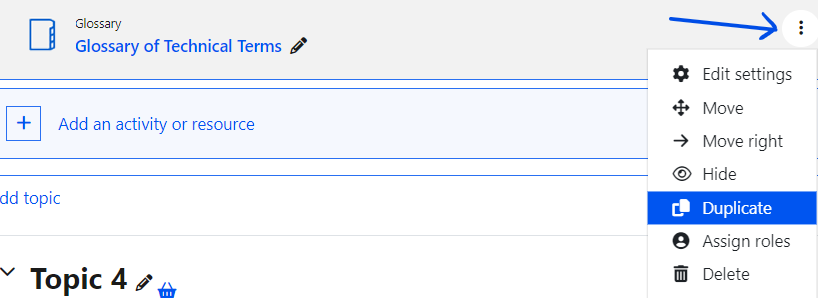
This will create a copy with the word (copy) appended to the title of the activity. - Click the three dots (Edit) next to the original Glossary activity.
- Click Delete.
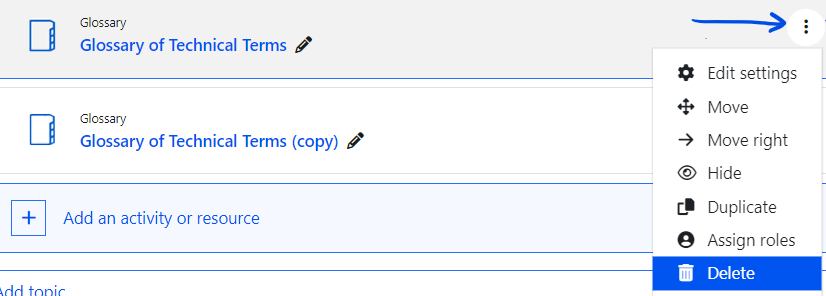
- Click the pen icon to rename the new Glossary activity, remove (copy) from the title, then press Enter on your keyboard to save.
 Database activities
By default, the Rollover Tool imports entries into the Database activities.
If you want a Database activity to be empty in the new year's page, you need to duplicate the rolled-over activity then delete the original, using the same process as for the Glossary activity above.
 Groups and group restrictions for activities
If your course was using groups and activity restrictions linked to groups in your 2022/23 course, these will have rolled over to the 2023/24 course.
- Remove any CMIS groups, as these won't match your 2023/24 groups.
- Check the rules for any restrictions are still correct, and that your groups are as you require.
If you require new groups, groupings and/or activity restrictions linked to groups in your 2023/24 course, you need to create these following the guidance on the M13 - Groups and groupings page.
CMIS groups
If you were using CMIS groups through Portico mappings in 2022/23, you will need to remove these groups from the rolled-over course before you activate the mappings again, and import the new CMIS groups (from August 2023).
Group Choice activity
If using the Group Choice activity, you will notice that some responses from the previous year will have rolled over to the new course.
To remove all responses and reset the choices to zero, you need to re-add the groups to the activity:
- Switch Edit mode on.
- Click the three dots (Edit) next to the Group choice activity.
- Choose the groups you wish the students to select from by clicking them in Available Groups.
- Move the groups over to Selected Groups by clicking Add, then Save and return to course.
If you require any help with the Group choice activity please check the guidance on the M13a - Group Choice page.
 Course Summary
While updating Moodle course content, take a moment to review the Course Summary. This can be found by clicking the Settings tab at the top of the course site, then scrolling to the Description section.
The course summary is shown whenever someone searches for the course. Ensure any place-holder text has been replaced with a brief description, so that students can see what it covers and can distinguish it from courses with a similar title. The summary should ideally be no longer than two to three lines.
Learning objectives, reading lists, assessment dates, etc. should not be included here, but within the course itself.
If you have any concerns, please contact the Digital Education team before you change any content.
.png?version=1&modificationDate=1657904609000&cacheVersion=1&api=v2&width=48&height=48) Badges
Badges
If you have badges set up and enabled in your 2022/23 course, they get rolled over to the 2023/24 course.
However, there are two conditions needed for the badges to be awarded (based on conditions you have set):
- They are only available to users after the course start date.
- They are disabled when copied over, so you will need to enable them in each course where they will be used.
 Portico mappings
After a course rollover, the Portico mappings will need to be updated in order for the new students to be enrolled into the course. This must be done by activating the new year's mapping.
Follow the guidance on the M30g - Module mapping process for rolled-over courses page.
Do not activate mappings until after mid-August - the new mappings in the Portico block will only be available from August 2023.
If you set it before, you risk it being removed and having to redo it late August, onwards.
This information is provided by Digital Education
( https://www.ucl.ac.uk/isd/digital-education-team-information ) and licensed under a Creative Commons Attribution-ShareAlike 4.0 International License
